If your robot is unreachable, then you've come to the right place !
Step 1 - Network prerequisites
First and foremost, make sure the following prerequisites are met:
First and foremost, make sure the following prerequisites are met:
-
The RJ45 cable is plugged to the ethernet port that has been configured with a static IP. If you don't know how to verify this information, here is how to do it.
-
The required flows to kapptivate are actually open (please refer to the IP requirements document provided by kapptivate). Contact us if you don't have this information.
Step 2 - Connecting peripherals
Then, you can connect a screen and a keyboard to your robot. If your robot does not have a display output, you can follow this article.
If nothing is showing on the screen (even when you press some keys on the keyboard) then check if the HDMI (or display) source selected on your screen is the same as the one where you plugged the robot. If not, you can just change the source on your screen.
If the source is correct and the screen is still black, try to reboot the robot several times and check if it is powered on. If after all these steps your robot is still unresponsive, you can contact us at support@kapptivate.com and send us a video of the front of the robot (where the LEDs are) in case it is a cellular robot (the model with SIM cards). It is most likely a hardware issue that we need to solve.
Step 3 - Network troubleshooting
Your screen should be showing the interface of the robot so you can login using your credentials (login and password). Then, open a terminal if you are using a robot with a graphical interface. Launch the following command in the terminal:
traceroute IP
The IP must be adapted to match each IP address mentioned in the requirements document provided by kapptivate. Contact us if you don't have this information.
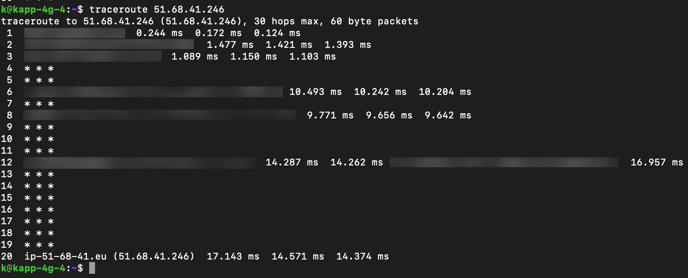
You should get a result that looks like this:
In this case, we can see that the robot manages to reach the target IP, which is the expected result.
However, you might get a result that looks like this:
This time, the robot does not reach the target IP. If it is your case, please refer to your IT department with a screenshot of this command. Something is blocking the connection between kapptivate and your robot thus some modifications need to be done to allow the traffic to go through.
You may also launch this command in your terminal:
curl -v telnet://IP:port
The IP and port must be adapted to match each IP address and port mentioned in the requirements document provided by kapptivate. Contact us if you don't have this information.
You should get a result that looks like this:
In this case, we can see that the connexion is successful.
However, you might get a result that looks like this:
This time, the connexion is refused. This means that the required flows to kapptivate are not actually open. Please refer to your IT department with a screenshot of this command as they need to open the corresponding flows.
You can now type the following command:
curl -v telnet://domain.kapptivate.com:port
The domain and port must be adapted to match each domain name and port mentioned in the requirements document provided by kapptivate. Contact us if you don't have this information.
You should get a result that looks like this:
In this case, we can see that the connexion is successful.
However, you might get a result that looks like this:
This time, the connexion is refused. This means that the DNS servers are not working properly. This can be due to the fact that:
-
The DNS servers have not been configured properly in the robot files. You can see this article that is related to the configuration of the ethernet port on your robot (that includes DNS configuration).
- The required flows to kapptivate are not actually open. Please refer to your IT department with a screenshot of this command as they need to open the corresponding flows.
If the telnet commands are successful, you may also launch this command in your terminal:
curl -v https://domain.kapptivate.com
The domain must be adapted to match each domain name and port mentioned in the requirements document provided by kapptivate. Contact us if you don't have this information.
You should get a result that looks like this:
If you only get part of this reply, it means that something is blocking the connection on your internal network.
Example of a failing result:
curl -v https://app.kapptivate.com
* Trying 195.154.69.122:443...
* TCP_NODELAY set
* Connected to app.kapptivate.com (195.154.69.122) port 443 (#0)
* ALPN, offering h2
* ALPN, offering http/1.1
* successfully set certificate verify locations:
* CAfile: /etc/ssl/certs/ca-certificates.crt
CApath: /etc/ssl/certs
* TLSv1.3 (OUT), TLS handshake, Client hello (1):