Introduction
Kapptivate web recorder allows to record a web test sequence directly from your browser.
Please read the instructions below or browse the following video:
Pre-requisites
kapptivate Web Recorder works with Chrome browser. The package comes as .crx Chrome Extension available here:
Installation
In order to install the package, navigate on the Extension page of your Chrome browser:
Activate the developper mode (top right corner) and chose "load unpacked". Browse and select the unzipped folder of the previously downloaded file.
Once the installation is done, you will see a kapptivate icon in your navigation bar:
Usage
How to record a new test
Click on the kapptivate icon in your navigation bar and you will see the main page of kapptivate Web Recorder displayed:
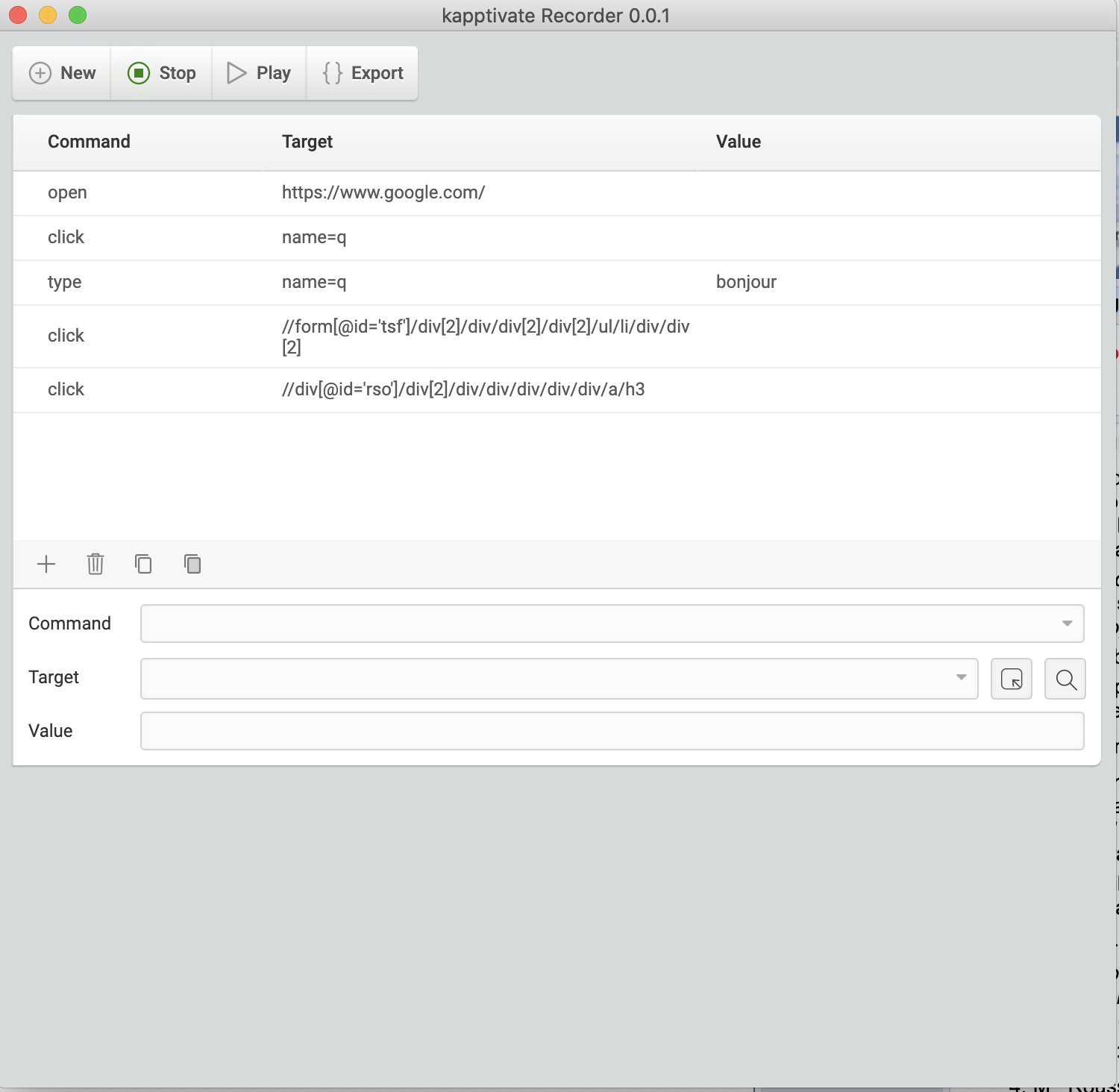
To record a new web test, click on “Record” then go to a web page and press enter. You can now navigate through the page, enter text etc. Once you have finish your scenario, click again on the kapptivate icon to get the Web Recorder view which is now filled with your actions:
Once you are finished, click on “Stop” then Export and CopyToClipboard:
 .
. 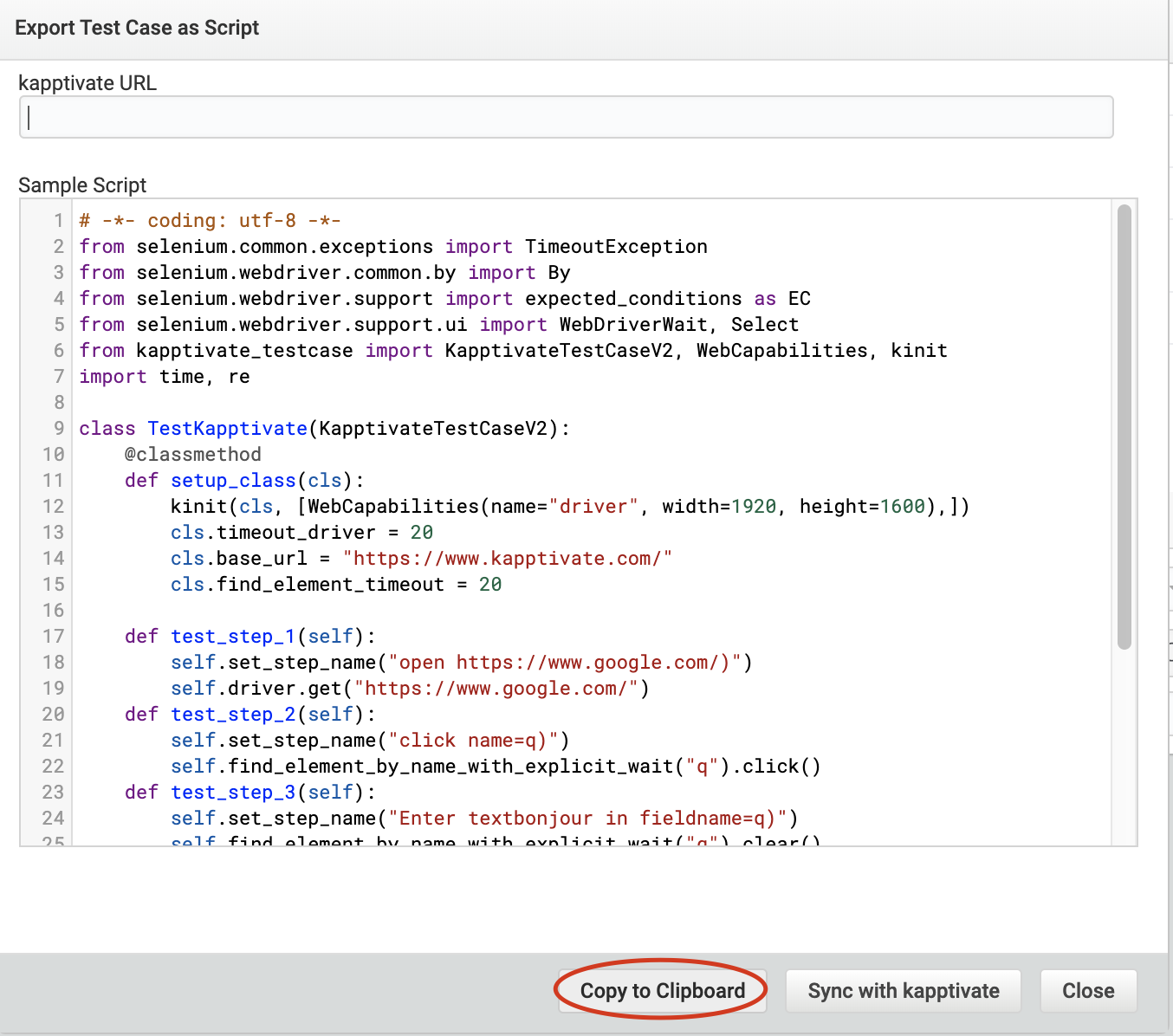
You can now navigate to your kapptivate Workspace and import the script in a Web Script action:
Select the default ethernet agent and click on raw script before pasting the previously copied script
Save your test and run it before configuring its monitoring